 Resale Record
Log a pickup
How to record something you bought to resell: photo, barcode, cost, source and date. Includes editing, the item label and what is saved.
A pickup is something you bought to resell: a box from an estate sale, a thrift find, an auction lot. Logging it records what you paid, which is what makes your profit figures real.
Add a pickup#
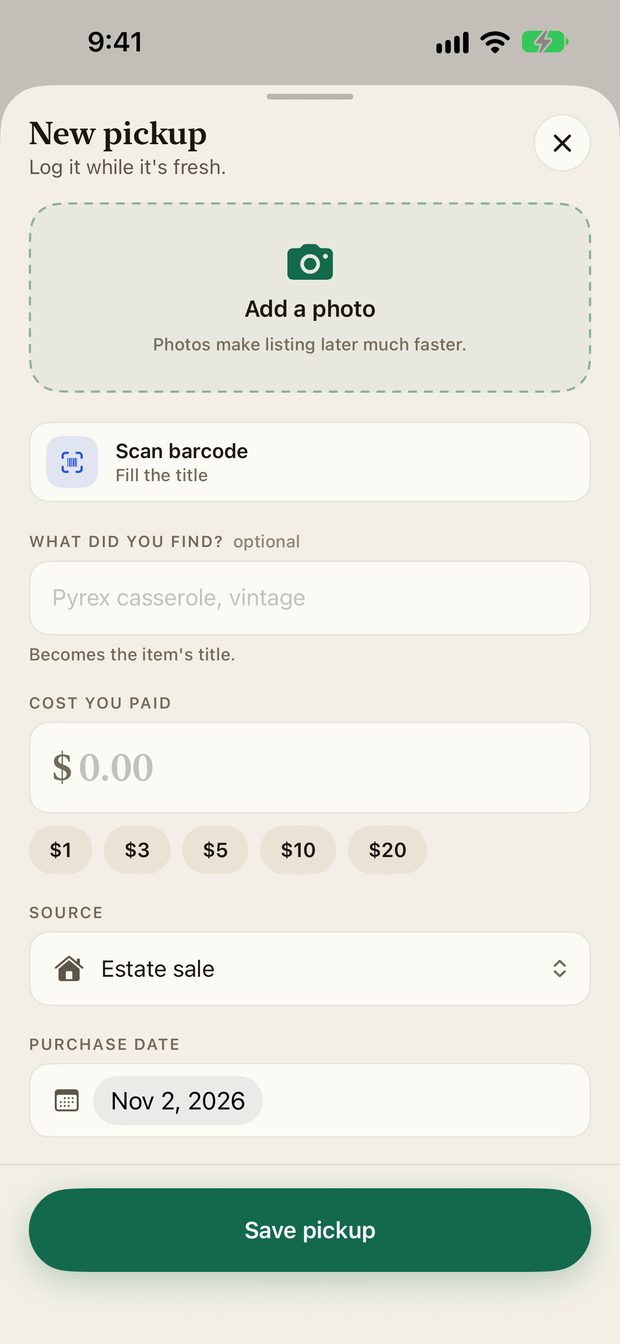
- Tap Capture and choose New pickup.
- Add a photo, or tap Scan barcode to fill in the title.
- Type what you found. This becomes the item's title.
- Enter Cost you paid.
- Choose the Source and the Purchase date.
- Tap Save pickup.
Lots and multiple items#
If you bought a box of mixed goods for one price, log it as one pickup and record the cost you paid for the whole box. You can then split it into items as you go. If you would rather import a long history at once, see Import a spreadsheet.
The item screen#
Tap an item in the Pile to open it.
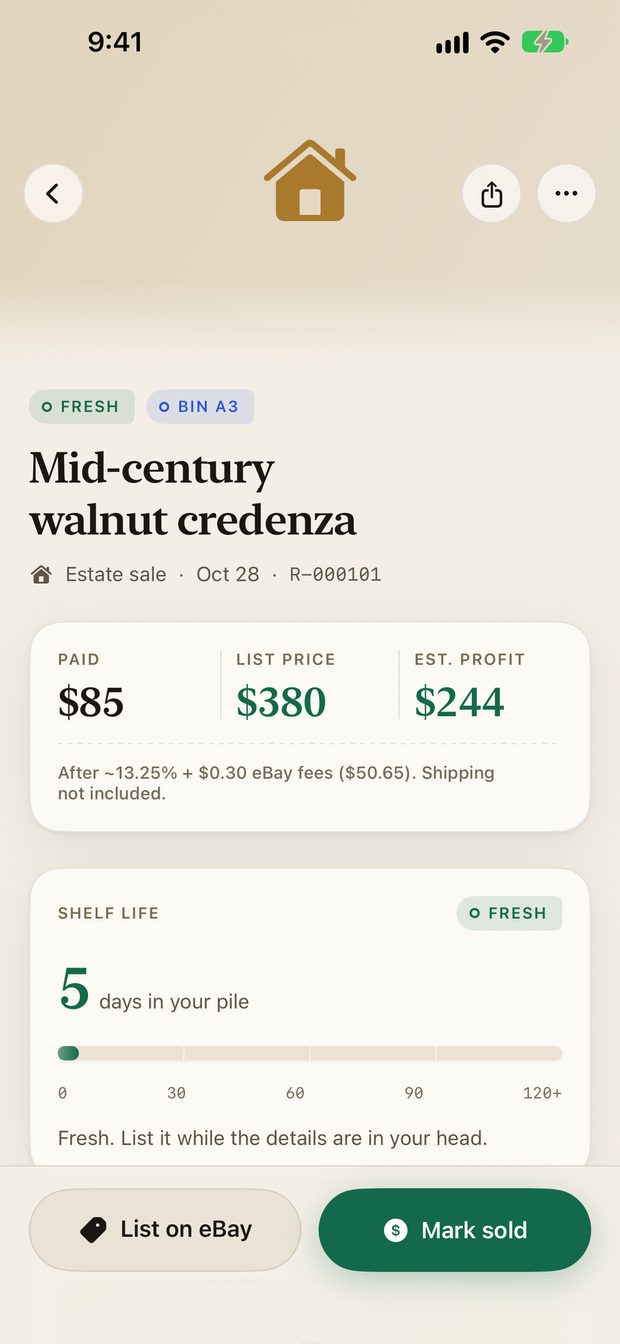
The item screen shows:
- Paid, List price and Est. profit. The estimate subtracts the typical eBay fees and shows that shipping is not included.
- Shelf life, a bar showing how many days the item has been in your pile.
- Where it came from and its bin, if you set one.
- List on eBay and Mark sold buttons at the bottom, plus a menu for sharing and other actions.
Print a label#
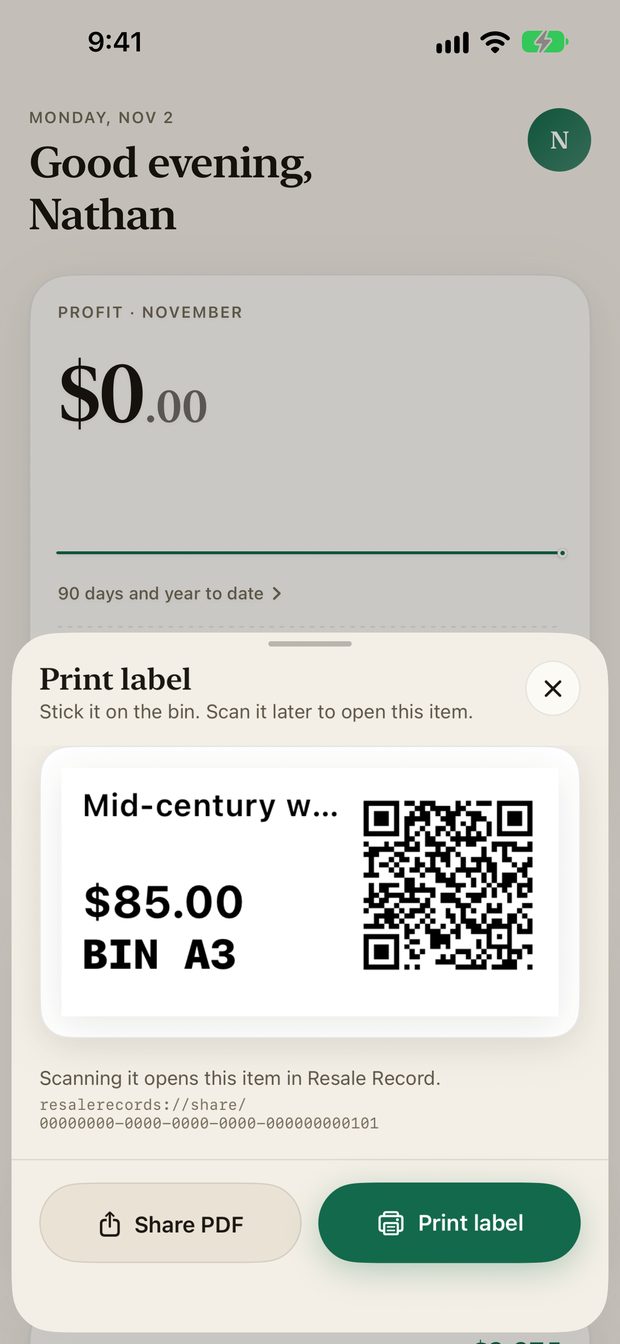
Open an item and choose to print a label to get a small label with a QR code, the title, the price and the bin. Stick it on the bin. Scanning it later opens that item in Resale Record. You can share the label as a PDF or print it.
Edit or remove a pickup#
Open the item and choose Edit details to change the cost, title, source or date. To remove one, use Remove and confirm. You can also swipe a row in the Pile for quick actions.
Something missing or out of date? Email support@resalerecord.com and tell us what you expected to see.