 Resale Record
Import a spreadsheet
Bring purchases and sales from a CSV file or an eBay report into Resale Record, with a preview first and an undo afterwards.
Already track purchases or sales in a spreadsheet, or in eBay's Seller Hub reports? You can import them instead of retyping. Find the import under Pile, Import or Settings, Import from spreadsheet.
Prepare your file#
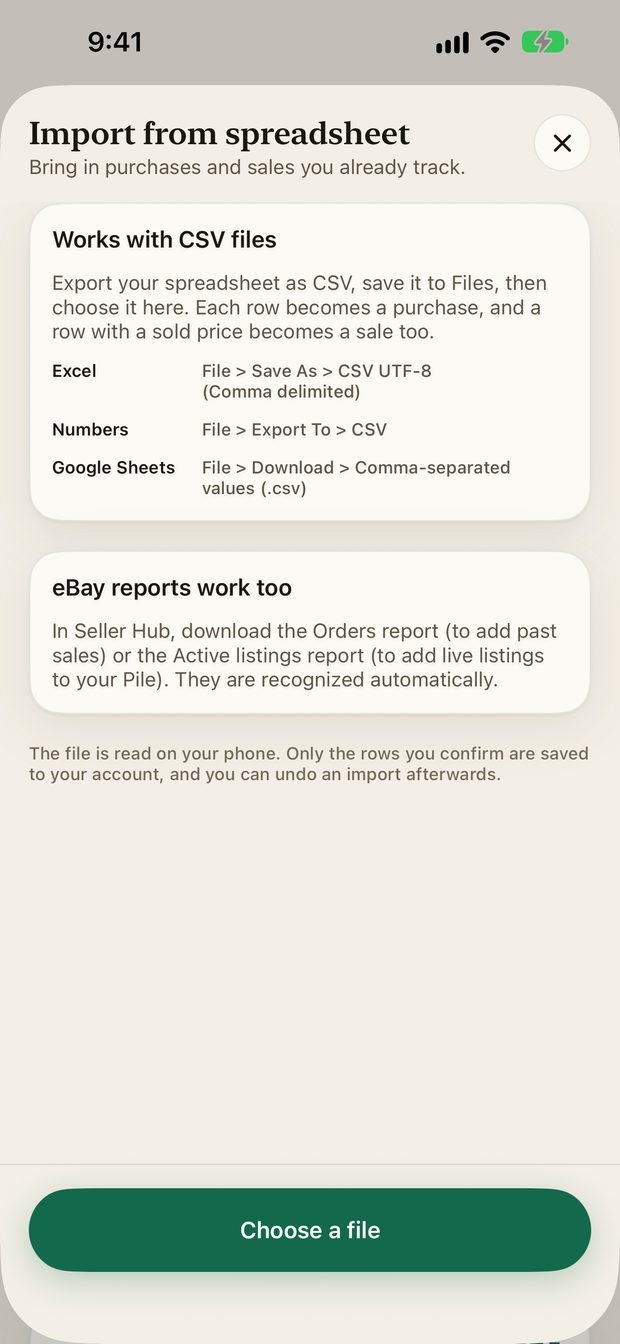
Export your sheet as a CSV file from your spreadsheet app, save it to Files, then choose it in the app.
| App | How to export |
|---|---|
| Excel | File, Save As, CSV UTF-8 (comma delimited) |
| Numbers | File, Export To, CSV |
| Google Sheets | File, Download, Comma-separated values (.csv) |
The import does not read .xlsx files directly.
How the import works#
- Tap Choose a file and pick your CSV.
- The app matches columns by their headings. You can fix any match on the mapping screen.
- You see a preview: how many purchases and sales it found and which rows it skipped.
- Confirm, and only then are the rows saved.
- Importing the same rows again does not create duplicates.
- Undo this import removes exactly the rows that import added.
- The limit is 5,000 rows and 10 MB per file.
eBay reports#
In Seller Hub, download the Orders report (to add past sales) or the Active listings report (to add live listings to your Pile). Both are recognized automatically.
The Orders report has no fee column, so imported sales show $0 fees. If you have connected eBay, its sync already adds recent orders, and the import skips those.
After you import#
Imported items are saved with a $0 cost unless your file had one. Check the costs needed card to fill the gaps so your profit is not overstated.
Something missing or out of date? Email support@resalerecord.com and tell us what you expected to see.